
The XP mode introduced with Windows 7 is unfortunately not available in Windows 8 and cannot be imported into Hyper-V. Anyone who still depends on Windows XP, even if virtually, finds a much more elegant solution in the following article to use the XP mode also in Windows 8.
Windows XP – It doesn’t always work without
The support of Windows XP (with SP3) ends on April 8, 2014. However, even after the date, there will still be reasons why users rely on Windows XP. Whether it is a stubborn and expensive special application, that it is not existing drivers for a rarely used scanner and e.
The reasons for a Windows XP used in parallel are different and not all the programs compatible with the most recent systems according to XP. Microsoft also recognized this and introduced the XP mode in combination with virtual PC with Windows 7 (see also the article «Windows Virtual PC and XP mode in poplitability of Windows 7, alternatives»).
The XP mode, which is basically a representation of a virtual machine, which already contains a Windows XP license and activated with Service Pack 3, is available for Windows 7 owners in the professional, definitive or corporate editions.
So if you still have this Windows 7 license, you can also use this XP mode in Windows 8, if possible, according to Windows 8.
Way out under Windows 8
Unfortunately, the XP mode cannot be simply used in Windows 8. The virtual PC has been interrupted and replaced in Windows 8 by Hyper-V. This new technology offers advantages for the functioning of virtual machines, but above all for users of the house, also disadvantages, such as the lack of USB or solid support. Further information on Hyper-V is available in the article «Virtualization with Hyper-V in Windows 8».
The free VMware reader can import XP mode, but only under Windows 7 and «allowed» editions.
The solution for Windows 8 users is the XP VMLite mode: a free virtualizer that takes over or installation of the XP mode. The VMLite XP mode is based on VirtualBox and can import the XP mode provided by Microsoft in its environment, also in Windows 8!
Like the «Real» XP mode, VMLite also offers the integration of applications in the Start menu of Windows XP and the execution of XP applications in window mode on the Windows desktop without the visible VM environment, but with a green edge for a better distinction.
Like other features, Vmlite offers USB and audio support, snapshots and much more.
Back to XP
Download VMLite XP mode first. This is why a free registration is required at the manufacturer.
Now install VMLite. If you have installed VirtualBox on the system, it is necessary to uninstall it, since Vmlite is based on the same technology and the virtualizers otherwise enter the enclosure.
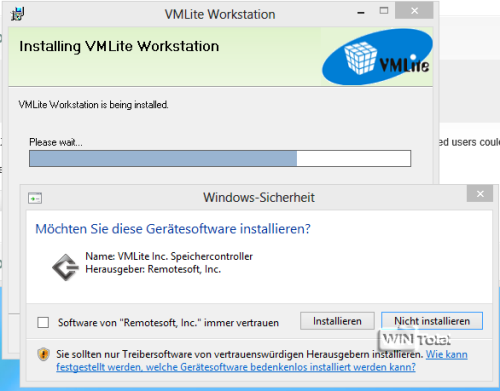
Several security reports are displayed during installation because the installer wishes to install new device drivers for VMLite. Appropriate installation calls.
In the next step, the installation routine wishes to integrate the XP mode. You can find it for download like KB958559 via Wintotal. However, you can download the XP mode directly from the installation program. To do this, select the third option and the desired linguistic variant.

The assistant then deducts independently the download of the XP mode.

In the following dialog box, it is necessary to accept the XP mode license regulations.

It is therefore possible to set the installation installation folder and the administrator password so that they can be subjected to later as such on virtual Windows XP.

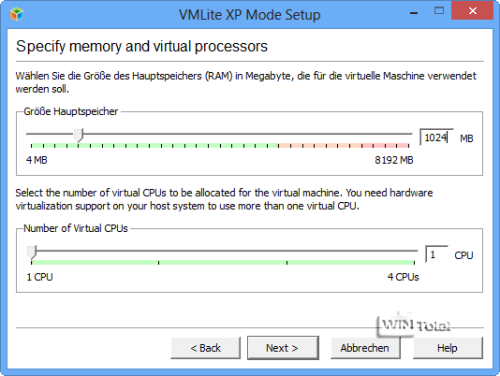
Windows XP should get 512 MB, best 1024 KB RAM.
Finally, the assistant asks you if you want to activate automatic updates for XP what you should definitely do because Microsoft’s XP mode has not experienced further updates after the service pack and is therefore hopelessly obsolete.

The assistant then completes the structure and prepares the XP mode for the first use.

Albeit retro
A look at the Windows XP desktop can quickly become a cultural shock for Windows 8 users, but offers a start button with a start menu.

At the bottom of the screen you will find numerous functions to adapt the virtual environment. For example, it is possible to hide the XP desktop and use only the active programs on the surface of the host system.
In our example, Internet Explorer 6 works on the Windows 8 desktop.

Like a good virtualizer, Vmlite also offers safety points. If you create one, you can go back to this condition at any time. Technology is ideal if you try a new software or change the essential settings within Windows XP.

Conclusion
If you depend on a virtual XP and also meet the license requirements, you will find a simple but very functional solution with VMLite. Users of other virtualizers must reinstall Windows XP from scratch and cannot access the License data of the XP mode. So, if you still have an old XP license, you can also install it in a virtualizer like VMware Player on Windows 8, but you have more work during installation and furniture.
Intrographic image source: © vmlite.com

 (24 votes, media: 4,20 out of 5)
 Loading …
latest posts published
Our complete stabilizer test
The best memory supports for Android and iPhone

Convert and edit audio files

Code publishers: you should know these programming tools
XP mode in Windows 8 with VMLite
How problematic are smartphones for the environment?

Make a period of time with a GoPro: how to do it?

The best round -based strategy games for the PC

Pay to Vince: the monetization of video games